
🚨 In a DIY emergency or rush?
Skip the details and jump straight to our 30-second cheat sheet for the most crucial info.
The first time I installed a smart thermostat in our 1970s ranch, I felt like I had finally joined the future. Then Monday morning hit and the house stayed stuck on the weekend settings like it was protesting the work week. Nothing was actually “broken” at all. It was a schedule problem, and those are almost always fixable without replacing anything.
This guide is for the specific situation where your thermostat screen works and the HVAC can run, but the schedule itself is not behaving. If your thermostat is blank, the system cannot reach the temperature, or the reading is obviously wrong because of sun or a vent, I will help you separate those issues too.
Quick check: is it the schedule?
Before you dig into menus, figure out which bucket you are in. It saves a lot of time.
This is probably a schedule problem if:
- The thermostat turns heat or AC on when you manually change the setpoint.
- The display is on and responsive.
- The schedule shows programmed times, but the thermostat does not switch when those times arrive.
- The app shows a schedule, but the thermostat says something like Hold, Override, Away, Eco, or Vacation.
This is probably not a schedule problem if:
- The thermostat is blank or unresponsive. That is usually power, batteries, a tripped breaker, a blown fuse, or a loose low-voltage wire.
- The HVAC runs but cannot reach the setpoint. That is often dirty filters, frozen coils, low refrigerant, airflow issues, or a heating equipment fault.
- The thermostat reads too hot all the time. Often direct sun, a supply vent blasting it, a nearby lamp or TV, or a poorly placed remote sensor.
If your screen is on and the system responds to manual changes, keep going. The rest of this article is the schedule checklist I run through in order.
Fix 1: Cancel Hold
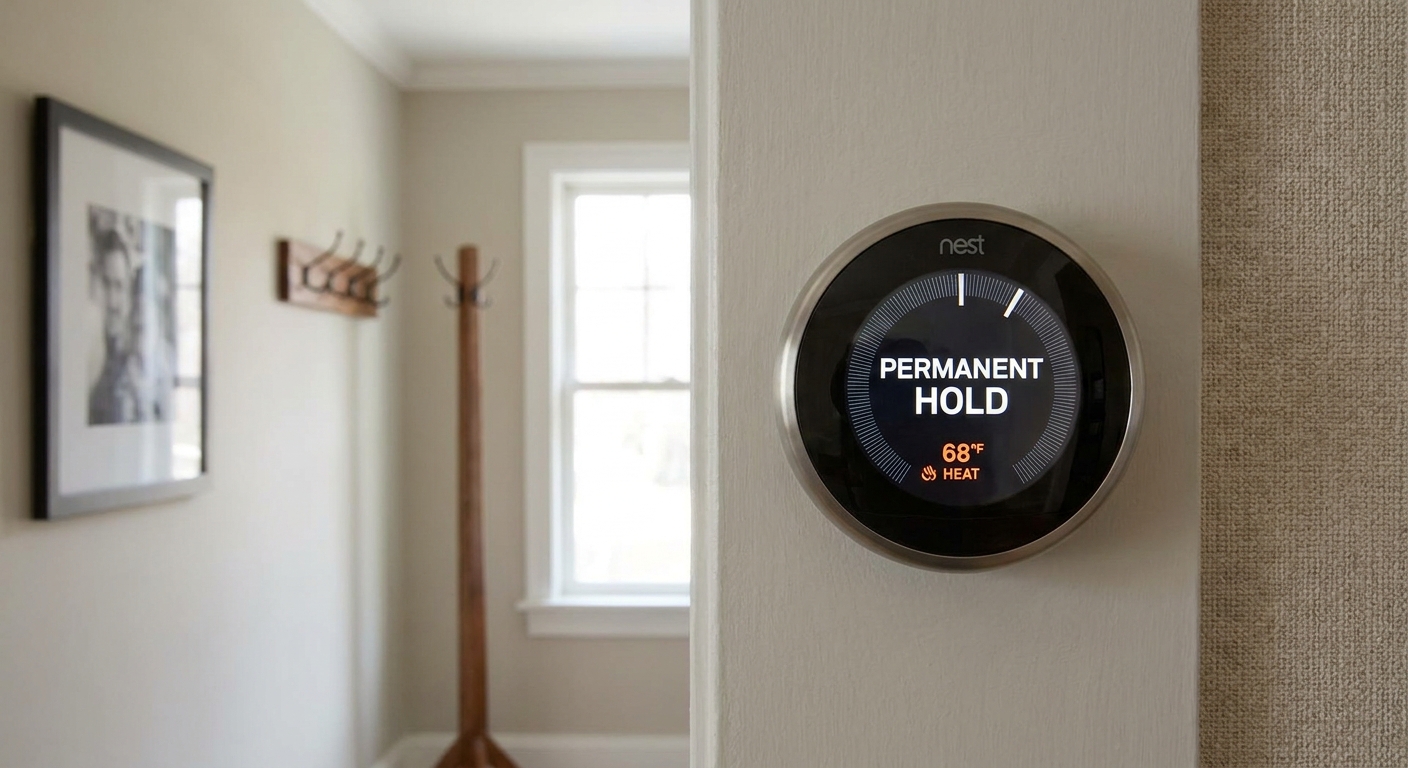
Hold is one of the most common reasons a thermostat ignores its schedule. A Hold tells the thermostat, “Do not follow the program, just stay here.” Some models make it painfully easy to activate accidentally.
What to look for
- “Hold,” “Permanent Hold,” “Hold Until,” “Override,” or a little hand icon on the screen.
- In an app, a banner that says something like “Following manual setpoint” or “Hold until next scheduled period.”
What to do
- Press Cancel, Run, Resume Schedule, or Use Schedule.
- If you see Permanent Hold, make sure you fully exit it. Some thermostats require two taps: one to open Hold, another to cancel.
- If your thermostat offers Hold options, set it to “Hold until next scheduled period” rather than “Hold indefinitely,” if that fits your household.
What success looks like: After you cancel Hold, the display should indicate it is following the schedule again and show the next scheduled change time.
My personal gotcha: On one unit I used, changing the temperature with the arrows automatically created a Hold. I assumed the thermostat would snap back at the next period, but it only did that if the Hold setting was configured correctly.
Fix 2: End an override
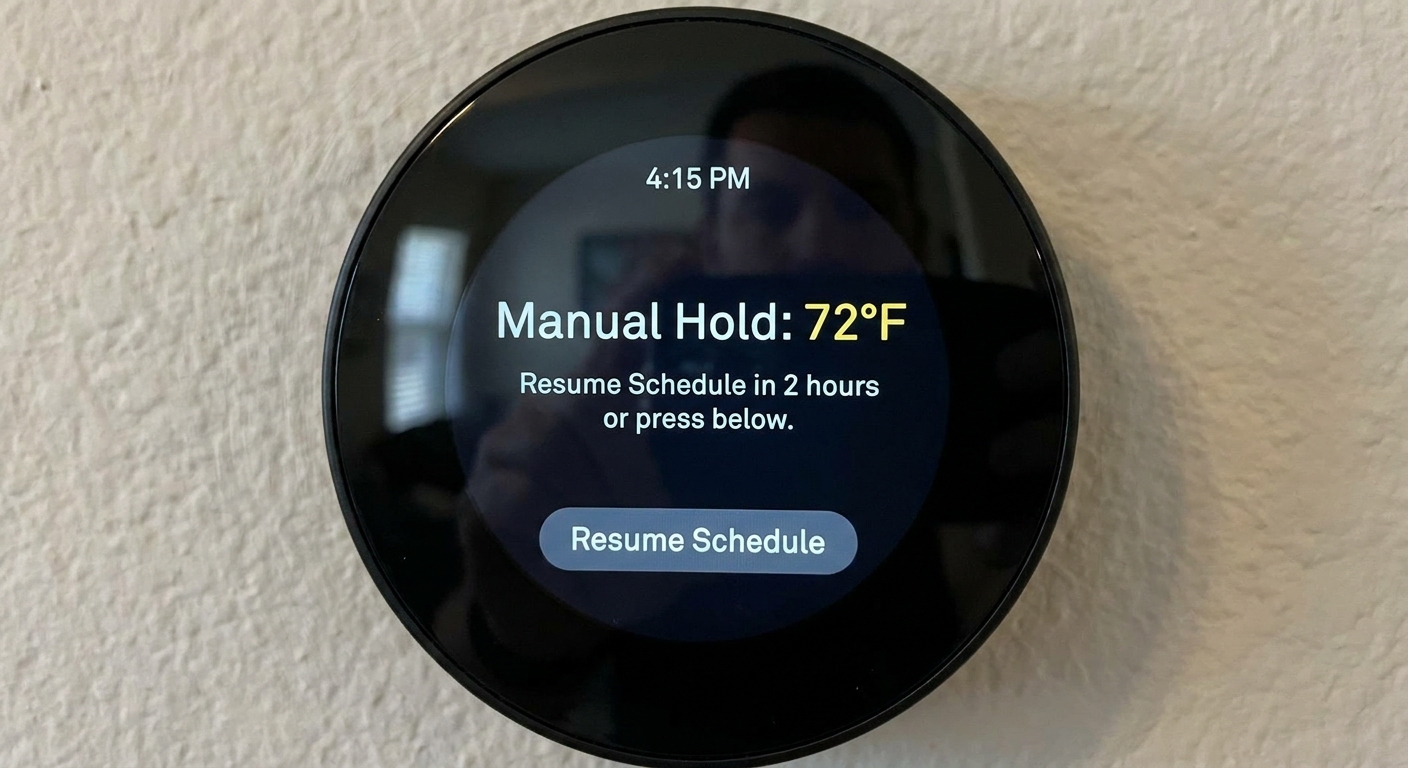
A temporary override is like Hold’s sneaky cousin. You might set the temperature for a party, bedtime, or cooking session, and the thermostat is supposed to return to schedule later. If the time, day, or mode is wrong, that override can hang around and look like the schedule is broken.
Signs you are stuck in an override
- The setpoint is not one of your scheduled setpoints.
- The thermostat shows a time like “until 6:00 PM” that never seems to arrive.
- You recently used voice control, an app widget, or changed the temperature from your phone.
How to fix it
- Tap the banner or message about the override and choose End, Cancel, or Resume.
- On some models, switching from Heat to Cool (or Cool to Heat) and back can make the override controls easier to find.
- Confirm your thermostat time and date are correct. An override that is supposed to end at 6:00 PM will never end if the thermostat thinks it is Tuesday at 3:00 AM.
What success looks like: The override label disappears, and the thermostat shows the active scheduled period (or the next one coming up).
Fix 3: Check the day and periods
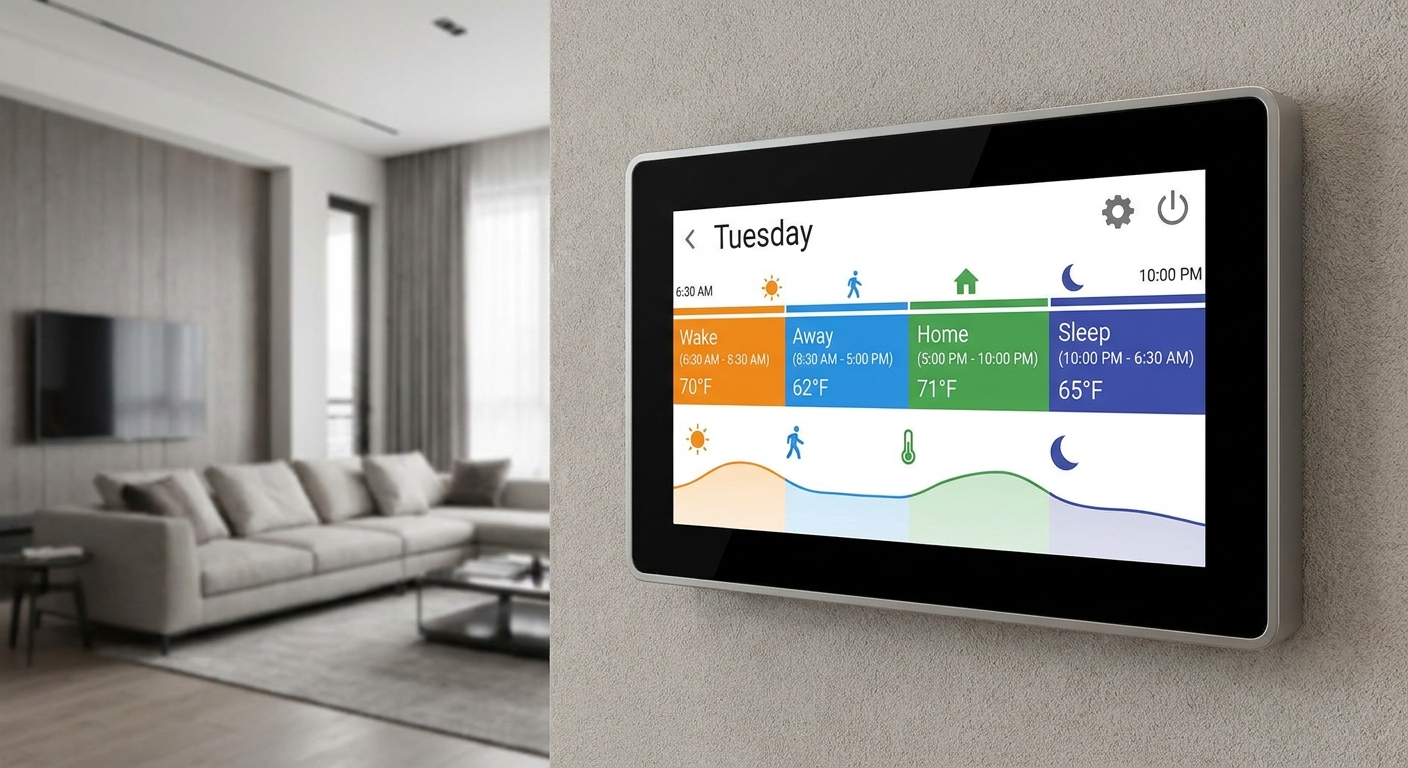
Schedules are usually built from named time blocks like Wake, Leave, Return, Sleep, or custom periods. If one period overlaps another, or if you edited Saturday when you meant Monday, the thermostat will behave wrong but technically do exactly what it was told.
Common scheduling mistakes
- Wrong day: Many thermostats split weekdays and weekends, or allow each day to be unique.
- Wrong period: You changed the setpoint but not the start time, or vice versa.
- Overlapping times: A later period starts earlier than the one before it, so the thermostat never enters the earlier period.
- AM/PM mix-up: A 6:00 PM start time accidentally set to 6:00 AM.
- Heat and cool schedules differ: Some thermostats store separate schedules per mode.
A quick sanity check
Open the schedule view and read it like a timeline for today:
- What period should be active right now?
- What temperature should that period target?
- What is the next change time?
If what you see on the timeline does not match your intention, fix the schedule right there. If it looks correct but is not running, move to the next checks.
Fix 4: Verify time and day
This sounds too basic, but it is a top culprit. Schedules are time-based. If the thermostat thinks it is an hour earlier, your “it never changes at 7:00 AM” complaint is really an “it changes at 8:00 AM” problem.
What to check
- Time zone (especially after a Wi-Fi change or router swap).
- Daylight saving time setting.
- Date and day of week (a wrong day makes the schedule look completely broken).
Extra note for smart thermostats
If the thermostat pulls time from the internet, a spotty connection can delay time or time zone syncing. You do not need perfect Wi-Fi for HVAC to work, but scheduling features can act odd when the thermostat is half-connected.
Fix 5: Check Vacation mode
Some thermostats have a Vacation mode, “Away for X days,” or travel setting that is basically a long Hold. It is great when you are actually gone. It is terrible when you forget it is on.
What to look for
- “Vacation,” “Away until,” “Hold until date,” or a calendar icon.
- A scheduled return date that is days or weeks out.
What to do
- Turn off Vacation mode and confirm the thermostat returns to “Following schedule.”
- If it asks what to do next, choose the option that resumes the normal program rather than maintaining a manual temperature.
Fix 6: Review Home, Away, Eco
If you have a smart thermostat, it may be running the schedule you wrote, but only when it believes you are home. If it thinks the house is away, it can switch to energy-saving settings and ignore your normal schedule.
Geofencing basics
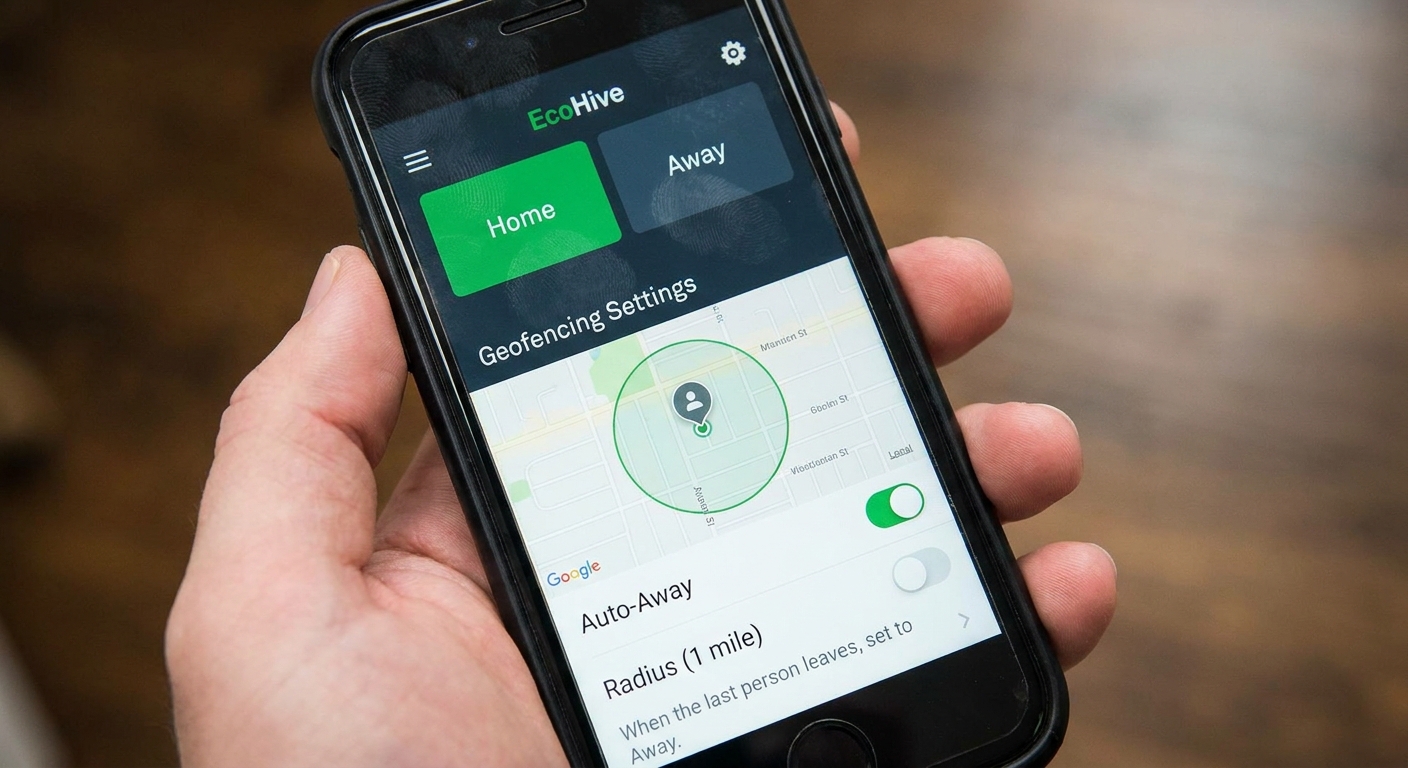
Geofencing uses your phone’s location to decide whether anyone is home. It is convenient when it works. When it does not, it is maddening.
What to check in the app
- Which phones count: If your spouse’s phone is the only one enabled, the system may go to Away when they leave even if you are still home.
- Location permission: Make sure the app is allowed to access location “Always,” not only “While Using,” if the feature requires it.
- Battery optimization: Some phones put apps to sleep and stop location updates.
- Home and Away temperatures: If Away setpoints are close to your normal comfort range, it can look like the schedule is stuck.
What to try
Temporarily disable geofencing or smart home and away features for 24 hours and see if the schedule starts behaving. If it does, you have confirmed the culprit without guessing.
Fix 7: Confirm system mode
Some thermostats behave differently depending on system mode:
- Heat schedule
- Cool schedule
- Auto changeover behavior
- Off (no schedule action, even if times change)
If you built your schedule while in Cool mode, then the first cold snap hits and you flip it to Heat, you may be looking at a different schedule entirely. This is especially common on thermostats that let you copy a schedule but do not automatically sync the two.
Fix 8: Look for smart features
Sometimes the schedule is running, but another “helpful” feature is adjusting timing or setpoints in the background.
Common culprits
- Smart recovery or early start: The system may start heating or cooling before your scheduled time so it reaches the target right on time.
- Auto-schedule: Some thermostats learn and rewrite your schedule over time.
- Eco modes: Efficiency features can widen temperature ranges.
- Utility demand response events: If you opted into a program through your utility or manufacturer, you may get occasional “energy savings” events that temporarily adjust setpoints.
If you are troubleshooting, it is fine to turn these features off for a day. Once the schedule behaves, you can add them back one at a time.
If the schedule is fine, but it still feels wrong
Sometimes the schedule really is running, but the thermostat’s decisions are based on a bad temperature reading, or on HVAC equipment that cannot keep up. Here is how to spot those situations quickly.
Scenario A: The thermostat is blank or rebooting
That is power, not programming. Typical causes include dead batteries, a tripped breaker, a blown furnace fuse, or an issue with the 24V power coming from the HVAC equipment. If you are comfortable pulling the thermostat off the wall, you can often see whether it is battery-powered or getting power from a C-wire, but if you see any damaged wiring, stop and call a pro.
Scenario B: It follows the schedule, but never hits the setpoint
That is an HVAC performance problem, not a schedule problem. The thermostat can ask for heating or cooling, but it cannot make the system deliver it.
- Replace or clean the air filter if it is dirty.
- Make sure supply vents are open and returns are not blocked.
- For AC, watch for ice on the refrigerant line or indoor coil.
- For heat, listen for short cycling or unusual burner behavior.
Scenario C: The thermostat reads hot or cold for the wrong reason
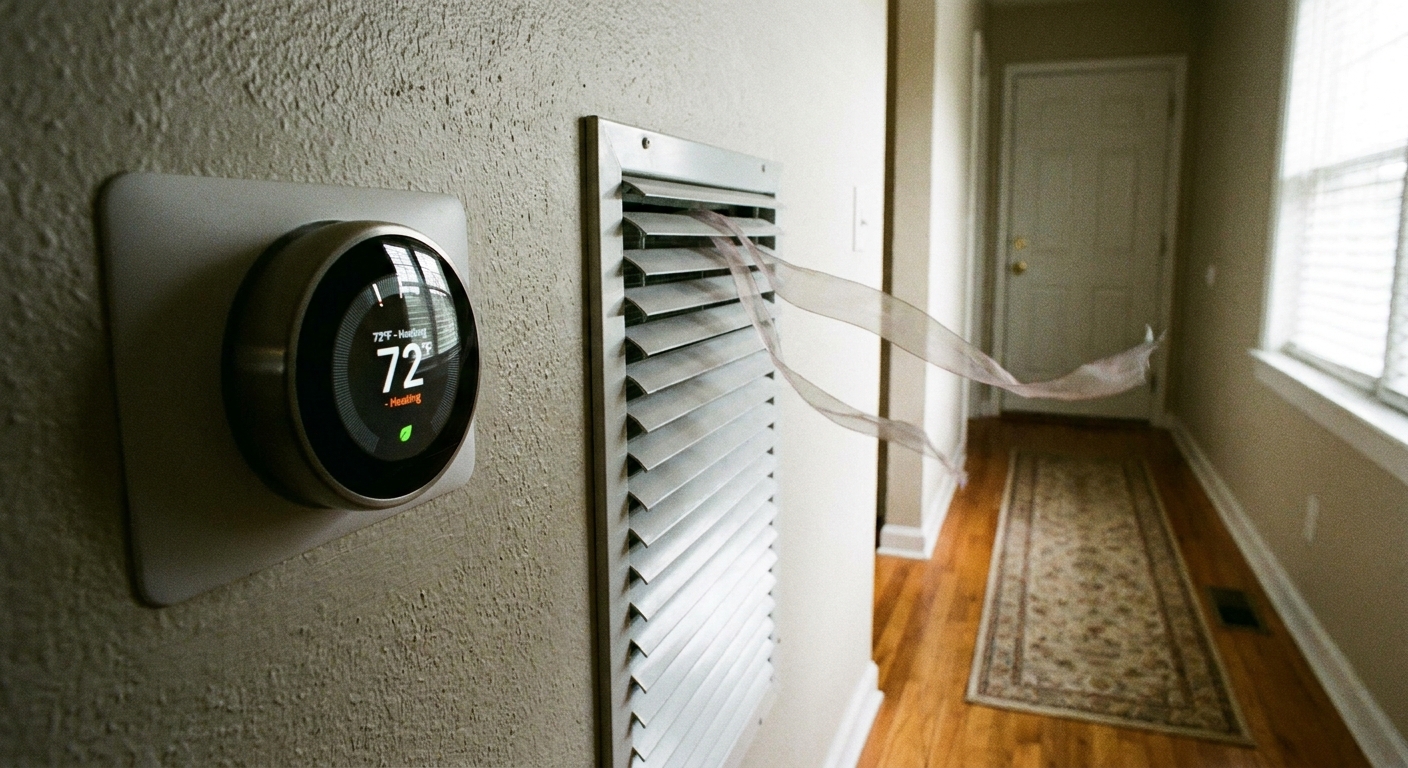
If your thermostat is in direct afternoon sun, near a kitchen doorway, above a TV, or in the blast zone of a supply register, it can read several degrees off from the rest of the house. Depending on whether you are heating or cooling, that can cause the system to shut off too soon or run longer than needed.
Easy checks you can do
- Hold your hand near the thermostat at runtime. If you feel cool or warm air washing over it, that is a clue.
- Look for sun glare on the thermostat at the same time each day.
- Compare the thermostat reading to a second thermometer placed nearby for 15 minutes.
If placement is the issue, the long-term fix is relocating the thermostat or redirecting airflow, but the diagnostic win is simply identifying that this is a sensor location problem, not a schedule bug.
Reset options
If you have confirmed there is no Hold, the day and time are correct, geofencing is disabled, and the schedule is still refusing to run, a reset may be worth trying. Just do it thoughtfully.
Two safer reset approaches
- Soft reboot: Restart the thermostat from its menu if it has one.
- Schedule reset only: Some models let you clear just the schedule without wiping Wi-Fi and system configuration.
If the manufacturer recommends it and you cannot reboot from the menu, you can cycle power at the HVAC equipment breaker or service switch. Follow the manufacturer’s instructions and use caution.
Tip from the school of hard knocks: Before you reset anything, take a few photos of your current schedule and any wiring terminals you can see. If you end up at factory defaults, those photos are gold.
When to call an HVAC pro
Scheduling problems are usually DIY-friendly. I would bring in a pro if:
- The thermostat is rebooting, flickering, or losing power repeatedly.
- The HVAC equipment is not responding consistently even with manual temperature changes.
- You suspect low-voltage wiring problems, blown fuses, or control board issues.
- The system runs but cannot heat or cool effectively and basic airflow checks do not help.
The goal is to avoid turning a simple settings fix into an electrical guessing game.
The 30-Second Cheat Sheet
Essential takeaways for: Thermostat Not Following Schedule? Fixes to Try
Do this first (2 minutes)
- Cancel Hold: Look for Hold, Permanent Hold, Hold Until, Override, or a hand icon. Tap Run, Resume Schedule, Cancel, or Use Schedule.
- End overrides: If you changed the temp from the thermostat, phone, or voice assistant, clear the temporary override so the schedule can take over.
If it still will not follow the schedule
- Check clock and day: Wrong time zone, daylight saving settings, or day of week can make schedules look broken.
- Verify you edited the right day and period: Confirm today’s timeline, start times, and no overlapping periods.
- Check Vacation or Away-for-days: Vacation-style holds can override your normal program until you turn them off.
- Disable geofencing briefly: Turn off Home/Away or Eco features for 24 hours to confirm whether location settings are blocking the schedule.
- Confirm system mode: Heat and Cool can have separate schedules. Make sure you are editing the one you are using.
- Watch for utility events: If you joined a demand response program or enabled energy features, the thermostat may temporarily change setpoints.
Not actually a schedule problem (quick tells)
- Blank screen: power or wiring issue.
- System cannot reach setpoint: HVAC performance problem, not programming.
- Thermostat reads hot in one spot: sun, nearby vent, or heat source affecting the sensor.
If you need a last resort
- Try a reboot or a schedule-only reset if available.
- Take photos of your schedule and settings before any factory reset.
💡 Tip: Scroll up to read the full article for detailed, step-by-step instructions.
⬆️ Back to top
About Grit
Content Creator @ Grit & Home
Grit is Grit & Home’s little blue clay courier, delivering big questions about the place you call home. Expect practical ideas, a raised eyebrow, and a satchel full of curiosity.